Tutorial for organisers
Run your weekly game on Bibs
From setting up your group to confirming who played. You'll never have to chase anyone for money again.
About 10 minutes to set up · 13 steps
Step 1
Create your group
Tap Start a group and sign in with your email. We send you a 6-digit code, so there's no password.
Add the group name, venue and postcode, then the day, kick-off time, game length and squad size.
More detail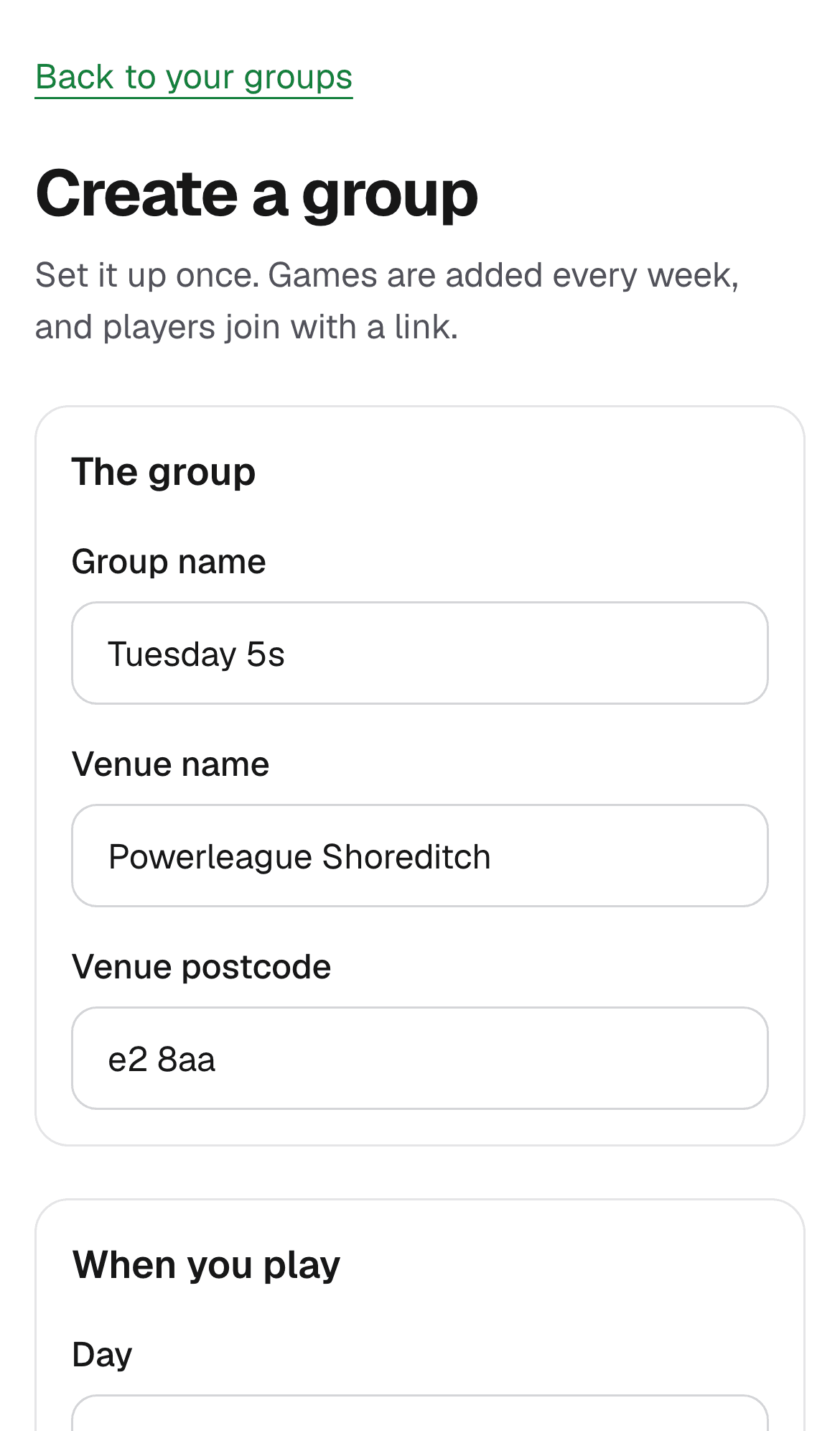
Step 2
Set your price
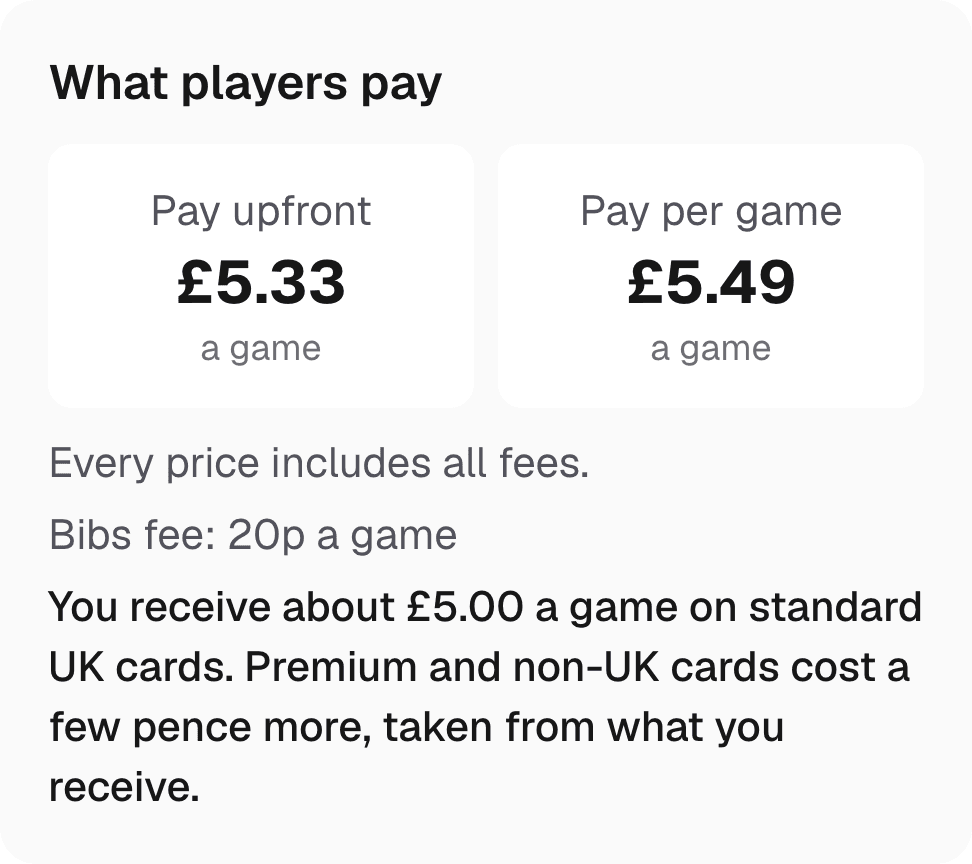
Enter your price per game: what you want from each player. Bibs shows what players will pay for each way to pay, with every fee included.
Choose which ways to pay your group allows. Pay upfront and pay per game both collect before the game, so you're never out of pocket.
Step 3
Set your group rules (optional)
Tick ready-made rules, on the pitch (like no slide tackles or rush goalie) and in the group (like arriving 10 minutes early), and add your own.
Players read them and tick "I've read the group rules" before they join.
More detail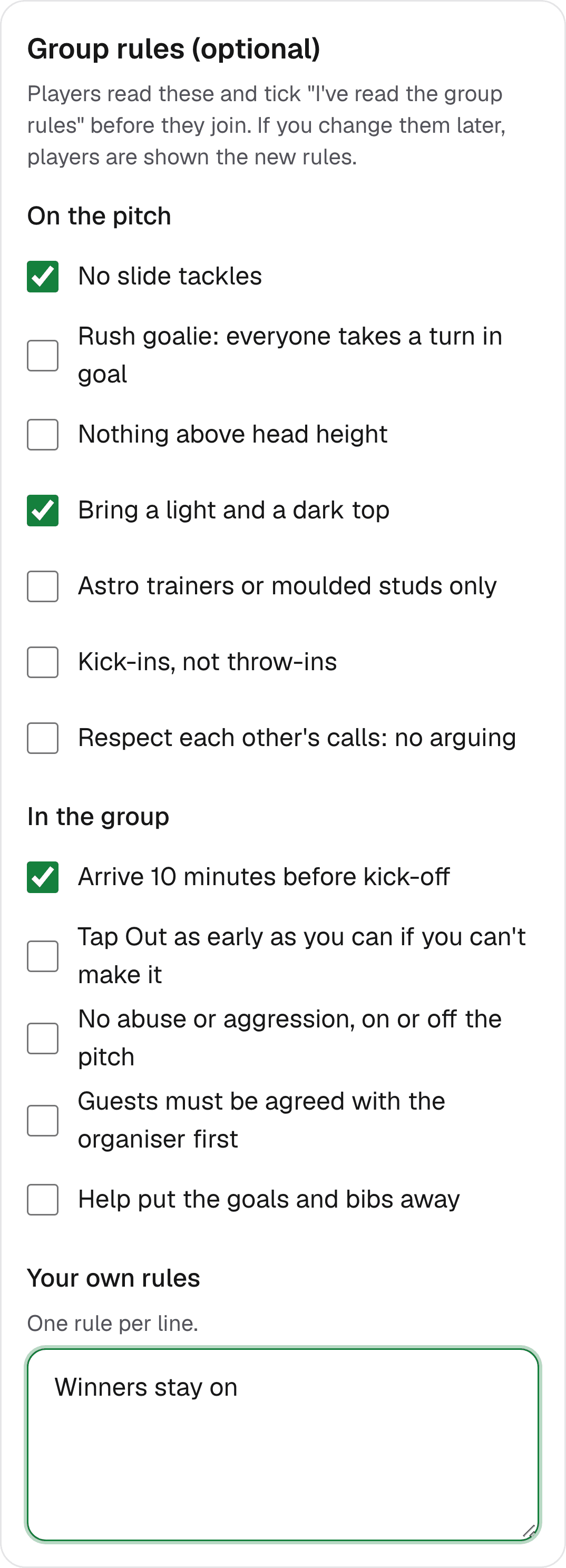
Step 4
Invite your players
Your group page has your invite link. Tap Share on WhatsApp and send it to your group chat.
Players join in a minute. You'll see them appear under Members.
More detail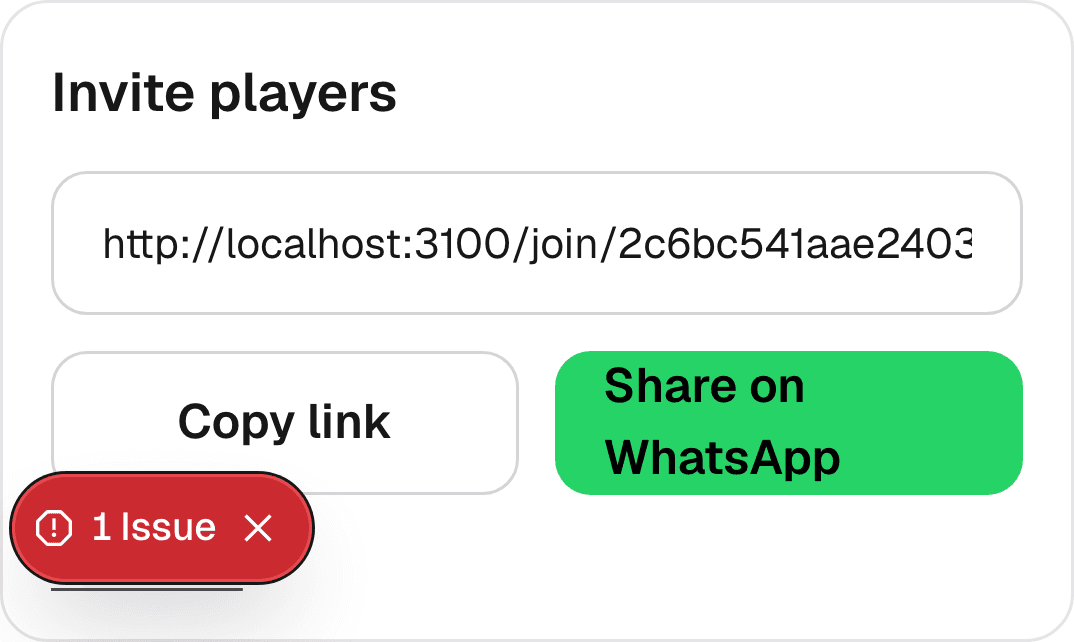
Step 5
Set up payouts
Tap Set up payouts. Stripe, our payment provider, checks your ID and asks for the bank account to pay you into.
It usually takes a few minutes. When it says Ready, players' payments go straight to your bank. Bibs never holds your money.
More detail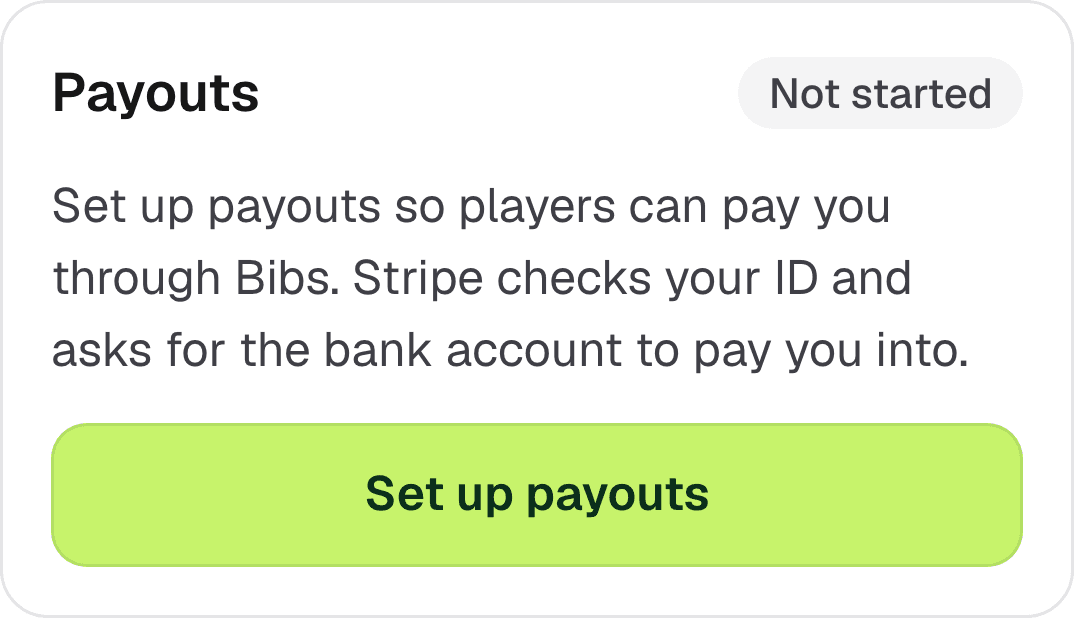
Step 6
Watch the squad fill up
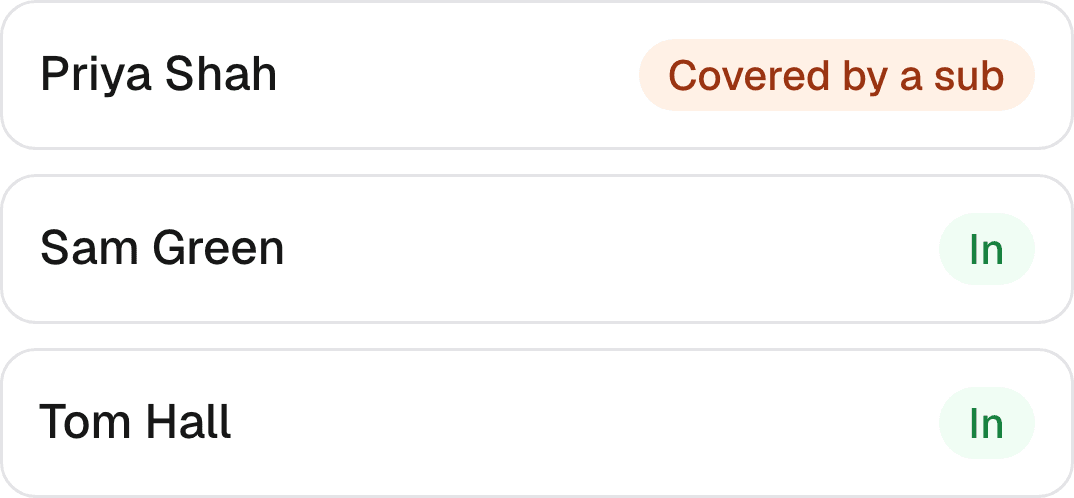
Each week, players tap In or Out. Open any game to see who's playing and who's on the waitlist.
If someone drops out late, the waitlist is offered the spot, and whoever takes it covers the player who dropped out.
Step 7
Cancel or move a game when you need to
Pitch closed? On your group page, tap Cancel game on that week and add a reason. Everyone is emailed what happens to their money.
Kick-off moved? Tap Change time instead.
More detail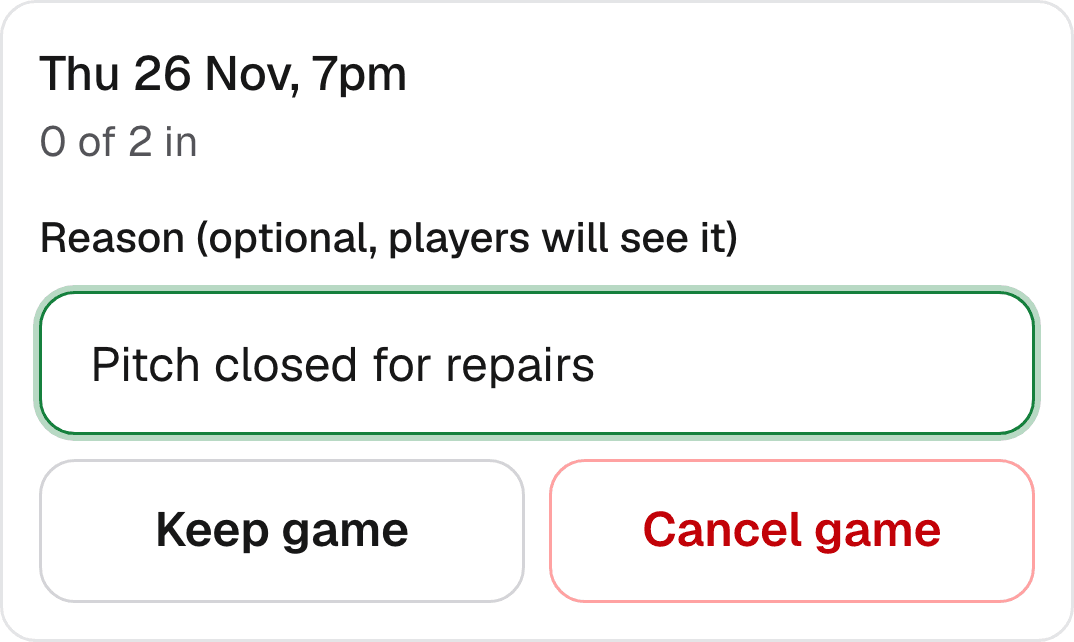
Step 8
Confirm who played
After the game, mark everyone Played, No-show or Excused, and add any guests who paid you cash. Bibs emails you a reminder.
If you forget, everyone still In counts as Played 48 hours after kick-off.
More detail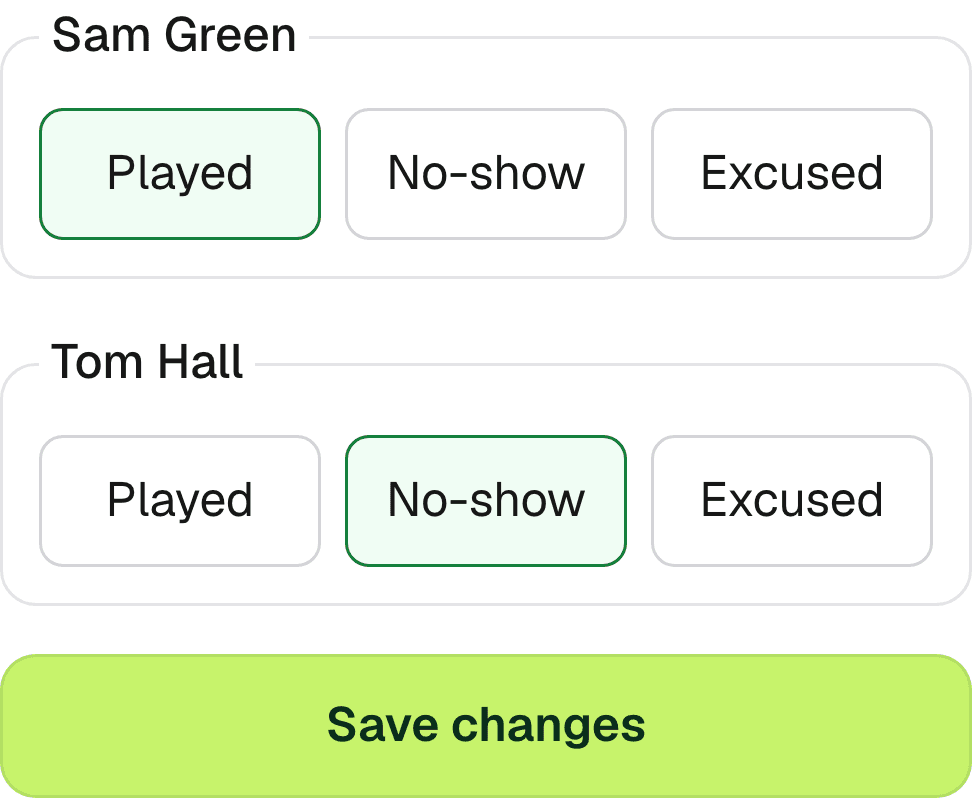
Step 9
Change the price when you need to
In Group settings you can change anything. A new price starts on your next billing day, and everyone is emailed the old and new price.
More detail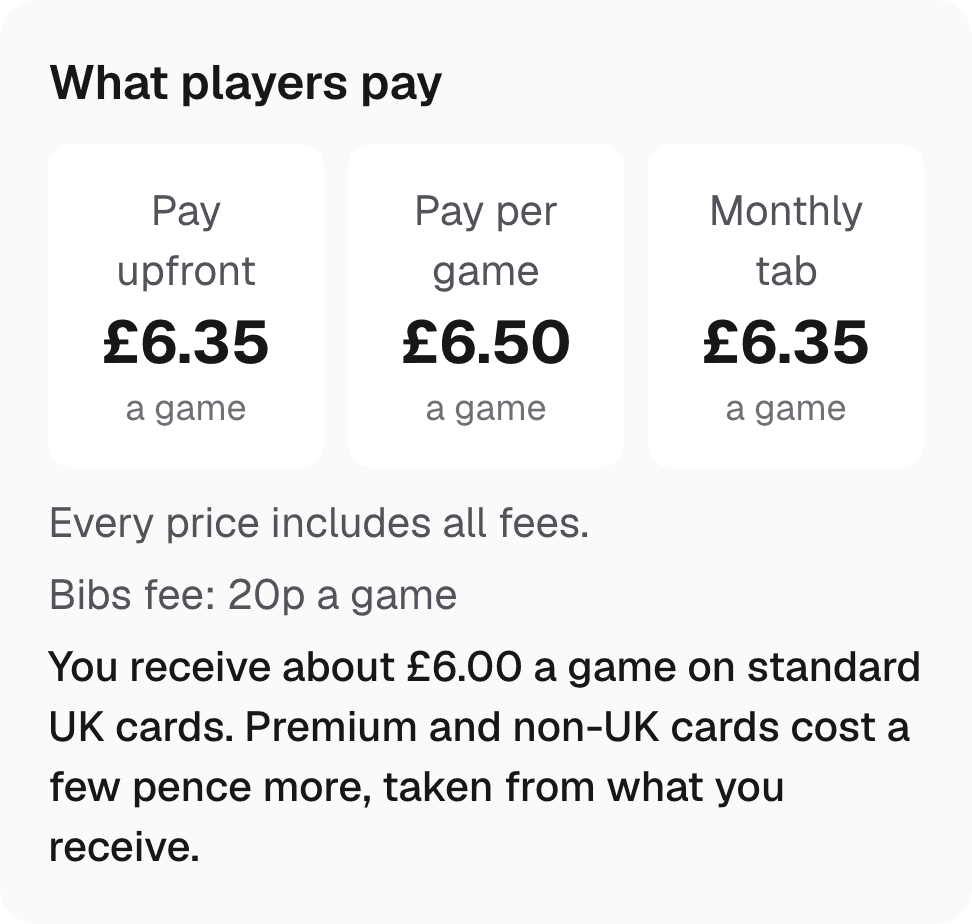
Step 10
Add a group picture (optional)
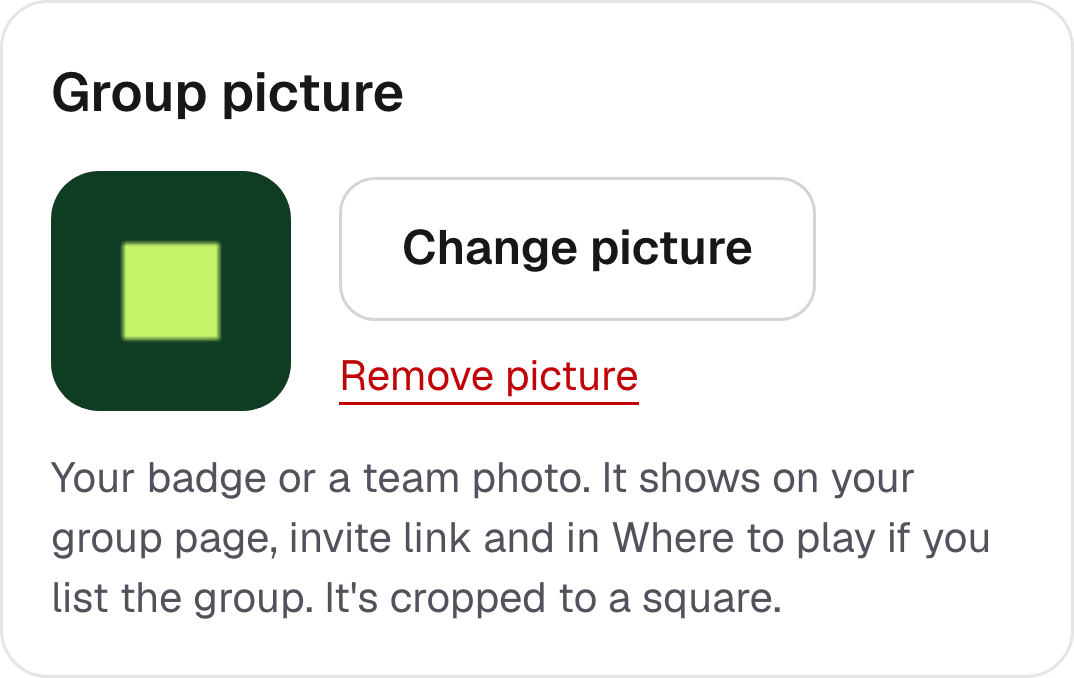
In Group settings, tap Add a picture and choose your badge or a team photo. It shows on your group page, your invite link and in Where to play.
Step 11
Find new players (optional)
Short of players? In Group settings, tick Let new players find this group. People nearby find it in Where to play.
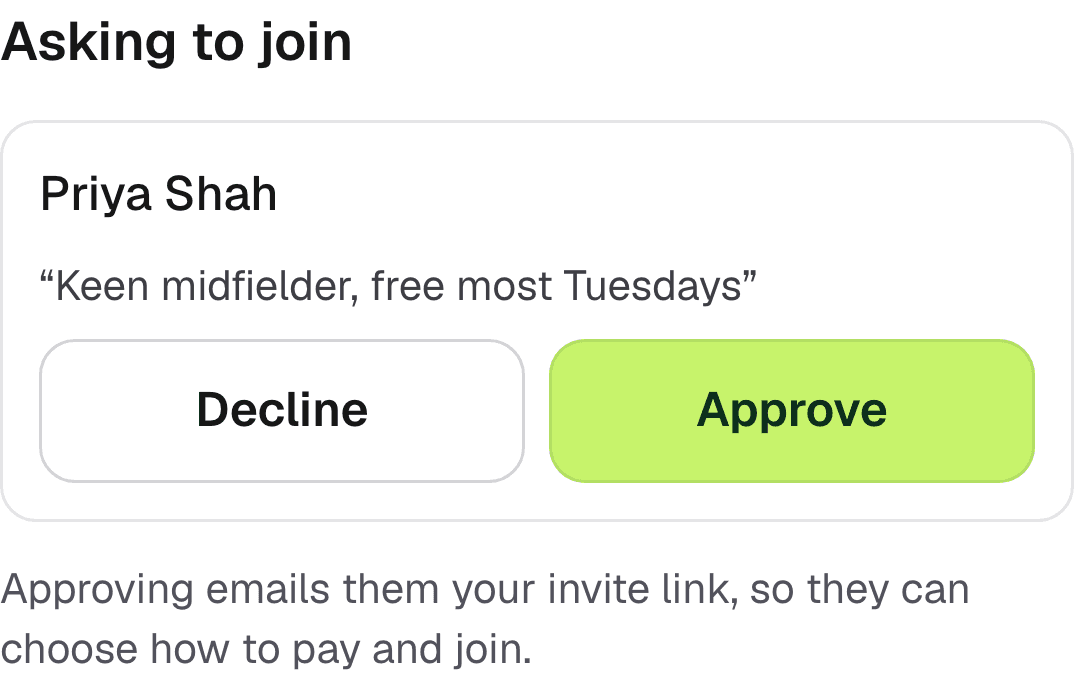
They ask to join with a short message. You approve or decline on your group page, and approved players get your invite link by email.
More detail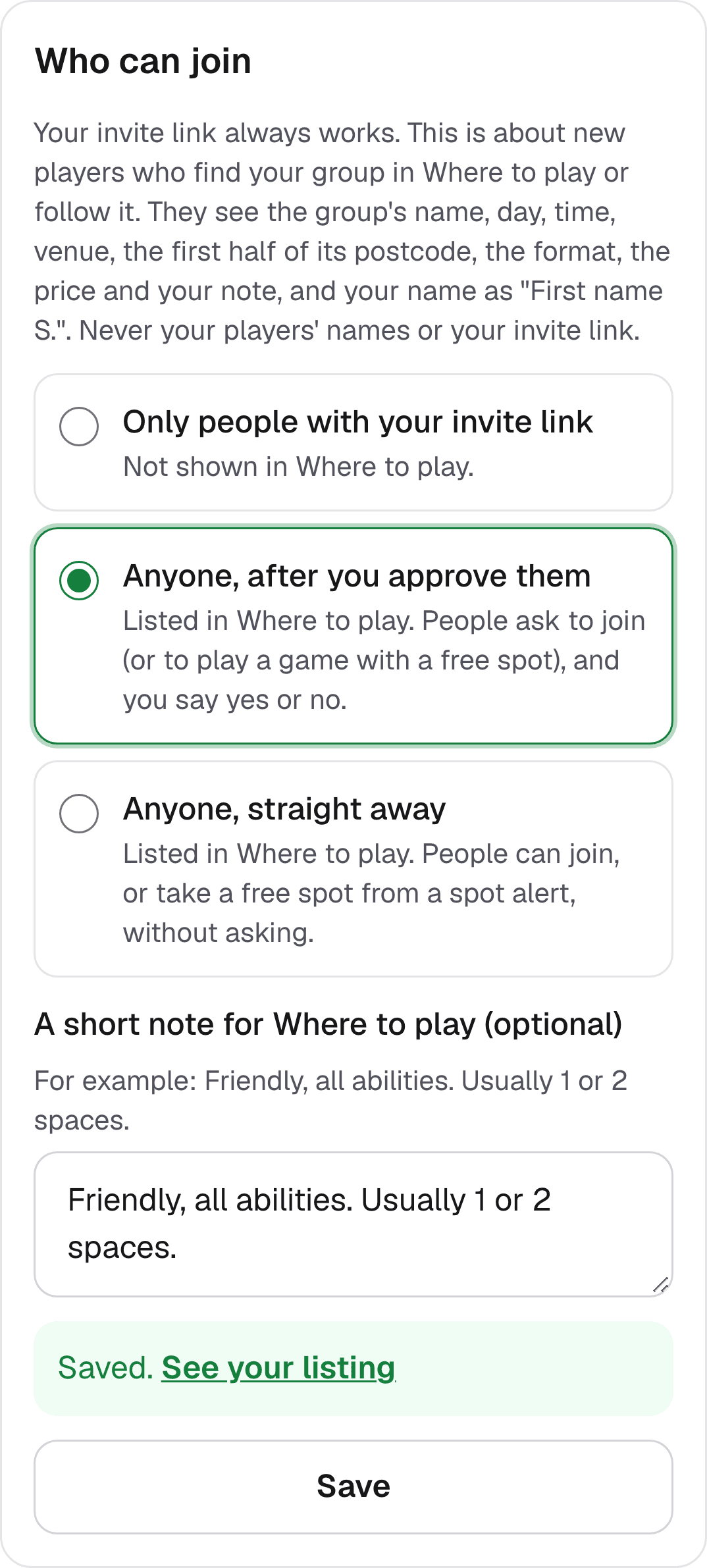
Step 12
Answer requests to join
Requests show at the top of your group page with the person's name and message. Tap Approve or Decline.
Step 13
Share with your venue (optional)
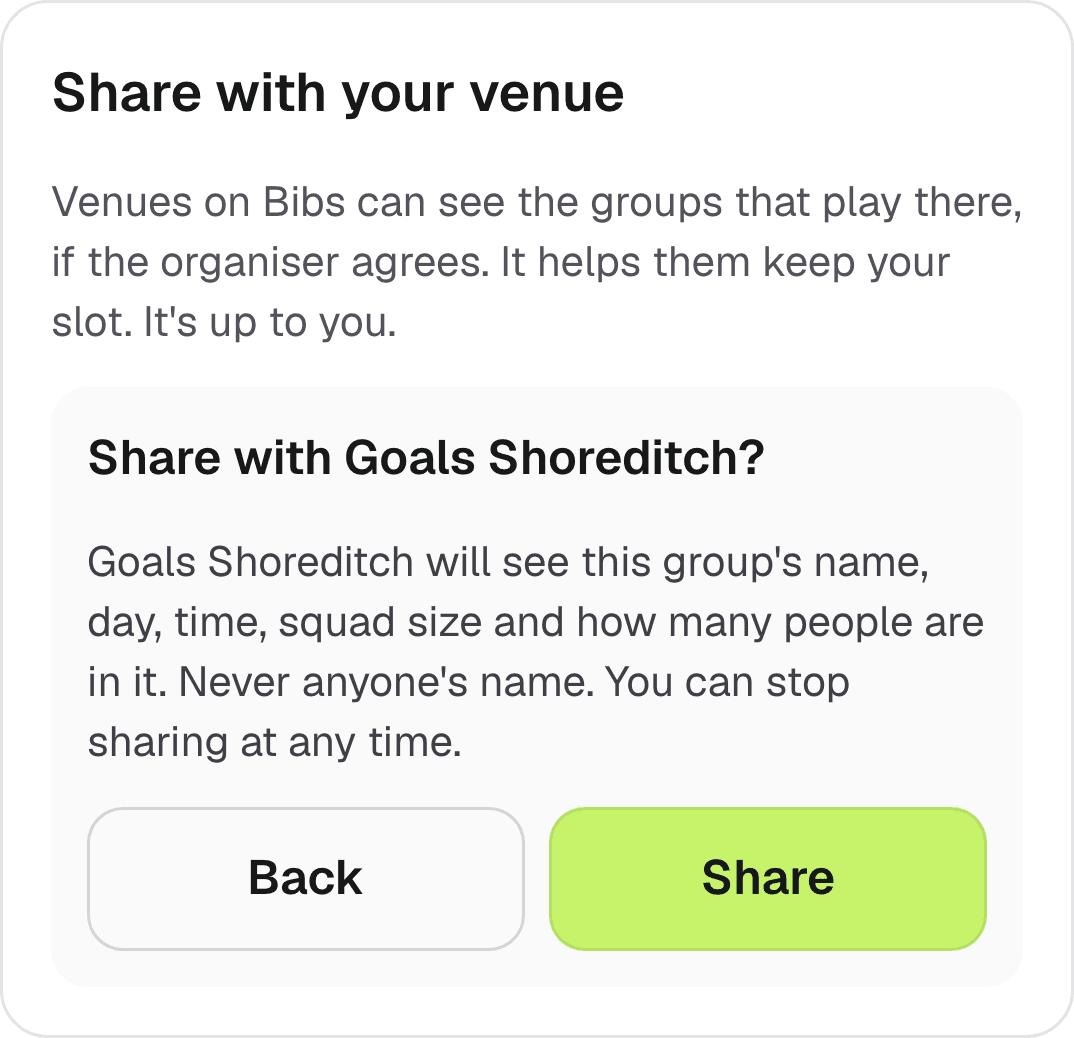
If your venue is on Bibs, you can let them see your group's slot: name, day, time, squad size and number of people. Never anyone's name.
It's in Group settings, and you can stop at any time.
More detail